Showing posts with label INTERNET. Show all posts

Sunday, 15 January 2012

Tips to Make Browsing the Internet Faster


Is your computer as fast as it was when you purchased it? Are you noticing that the smallest things take time to load on the internet? Take a look at what your computer is doing. Here are some little things that you can do to make your internet faster.

1. Use a third party DNS server

Choosing a third party DNS server like OpenDNS is an option which will make your internet service run faster. It will bring your computer closer to the information that you are seeking.

2. Update your browser

If you are using Internet Explorer, there are updates issued all the time. These updates are intended to close holes in security as well as optimize your system. Take advantage of the updates that are announced in the lower right hand corner of your screen.

3. Use placeholders for pictures

When you want to read the text and ignore the pictures, you can go to the ‘Internet Options’ option under ‘Tools’ in Internet Explorer. From there, go to ‘Advanced,’ and select the option of using placeholders for pictures. This will tell your browser that you don’t wish to see images.

4. Install an ad blocker

There are some sites which have constantly refreshing advertisements. The advertisements will be downloaded each time into your browser. Go to CNet and look for a blocker which will block the pop up ads from your system.

5. Install antivirus software

Antivirus software is absolutely essential on any computer. There are viruses on the web which can be downloaded through seemingly benign web sites, slowing or crashing your system. Make sure that you are virus free by installing an anti viral program like Malwarebytes Anti Malware onto your system.

6. Defrag your hard drive

Many people overlook defragmentation as being the cause of slow speeds. Your computer will write a hard drive’s data to wherever it chooses. Information is more easily found when your drive is defragmented.

7. Turn off unessential programs

Look at the icons near the clock in the lower right hand corner of your screen. Are there any programs which are running in the background which can be turned off? There may be applications that have been set to auto-update. This software can just as easily update when you are not surfing.

8. Keep your programs up to date

There are other programs which assist your browser in bringing you the best internet experience. Applications like Flash and Java need to be kept up to date just like your browser and operating system. Older software tends to make a machine operate less efficiently.

9. Clean your computer

Are there games that you haven’t played in months which are still taking up space? Your computer needs a certain amount of physical hard drive space to run its processes. If it does not have this space, your internet will slow down. Take the time to remove unused software from your machine.

10. Install more RAM

The newer operating systems need at least 1GB of RAM to properly function. If the RAM isn’t there, your computer will be sluggish. Get yourself a couple sticks of RAM and watch your machine speed up.

11. Change your internet settings

When the cache gets full, your net connections will slow down. You can give yourself more cache space by changing the settings in the Tools menu of Internet Explorer. Install your software one piece at a time to make sure that it has the intended effect. Each of the installations and tweaks that you do will add a little bit of speed to your internet browsing. Your computer will soon be zooming to its capacity.

Wednesday, 11 January 2012

How to view your IP Address through Google Search


So now sometimes you wanna know what is the real IP address you are owning and you make a search in Google and some sites gives you all the details about your IP Address. But now knowing your IP address is
quit simple because Google now displays your IP Address on its search page.

So now use this simple step to find your Ip address using Google 
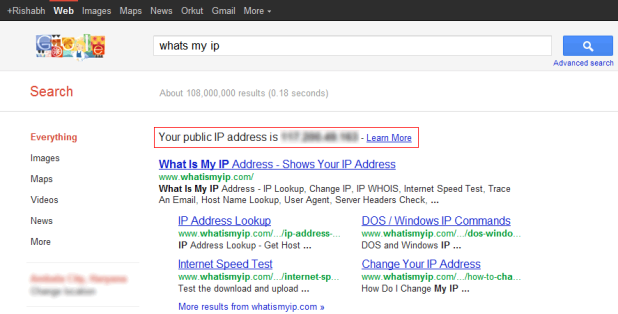
See the below screenshot :
How to view your IP Address through Google Search

So as you can see in the above image there is a Red Highlighted Box displaying your Public IP Address so how to see yours well you simply have to open Google.com and than make a search what's my ip and that’s it now you will get search results containing your IP Address and some websites for easy access.

Get Free .in Domain and Hosting from Google


Google in partnership with HostGator and ICICI Band revealed a new service called India Get Onlinewhere you can setup website for your Business or personal use for free. With this amazing offer you will get free .in domain + webhosting for 1 year for free by HostGator.


Now everyone will try to get domains free of cost and will also try to spam with fake websites and other things so Google has taken a security step to maintain no spamming activity, as you will register a new .in domain name you have to provide them with a valid PAN card number and every individual is provided with a single PAN Card Number so he can only register one domain @ a time.
So anytime you feel you wanna change the hosting you can do that by changing your Host from HostGator to anyone. You website will also be integrated with Google Apps and you can take benefit of every Google Product.

Find Best Way to do Stuff Online

CatchFree is an awesome online resource which has complied a complete list of online services which can benefit you in number of ways. Its has proper list of services categorized according to their type or nature and then they are compared with each other so that a good review can be done on them.


CatchFree provides a very simple interface which lets you choose a type than browse sub categories in that thing and then see some good online services being compared with each other so that you can get maximum benefit from these online services.


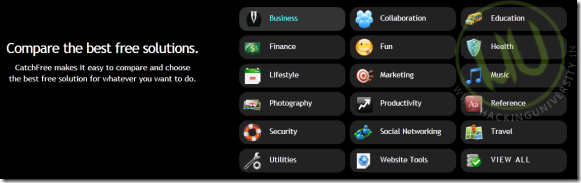
1

So you can see in the above screenshot you have different categories according to your preference you can select one like I chose FUN Type so its now divided into different categories select one like below .:

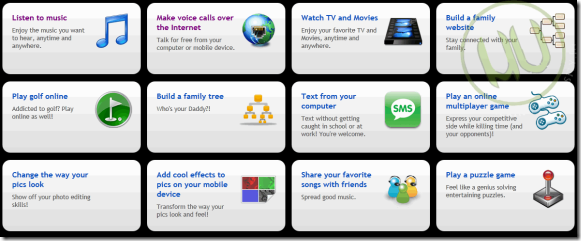
2

Now here like I choose Make Voice Calls Over the Internet and now it will simply show us some of the best online services which you can use to make call over the internet for free and that too clearly see the screenshot below .:

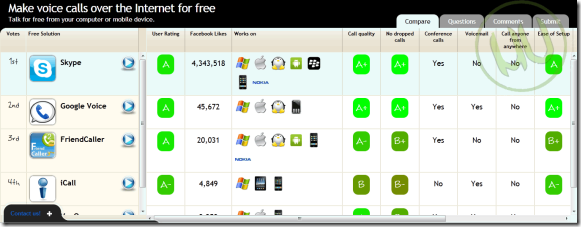
3

So as you can see it shows like Skype is the best service or online tool to make Voice call over the internet and that too clearly and you can see about its working, compatibility, ease of use and many other features that are compared and you can use these statistics to make your online experience much much easier.

Preview Files while Downloading with IDM

So you download a lot , movies, games, songs and all the other Geeky things like software's etc. 
Well sometimes you are downloading a movie with IDM and as its downloading you wanna get a preview of it but the thing is how to do that because the place where you have saved the files,
its still not showing those files because it is downloading them but we have a trick for that to preview your files on the Go if still they are in a process of downloading.

Follow the below steps to see how it is done .:

1. Simply start any download like movie which wanna preview while downloading.
2. Now as its still going go to the settings in the IDM section you can go there by click the IDM icon in thetaskbar.
3. Now in the settings click on the Save to button like below .:

Preview Files while IDM Downloads

4. Now here you can see that Red Marker is highlighting a Temporary Directory where the downloading files are kept when they are in a process of download so browse to that directory and navigate to your downloading file.
5. Now simply Right Click that and choose Open With VLC player, enjoy the trailer of what you are downloading.

Best tips to increase mobile internet speed

Mobile internet these days is the main source for the teenagers for staying updated on social networks, sometimes Internet gets slow or even gets disconnected that stage is really freaky insane and it pisses everyone off.
5 tips to increase mobile internet speed
So today we are going to see some steps which will boost your mobile internet connectivity and hence gain some more speed.

Follow the below steps to increase mobile internet speed .:

 1. Well the first point is obvious find some near Hotspot and use their internet as its fast and more active. As they are connected to a broadband which they are simply distributing through Wi-Fi so you can take advantage of that thing and enjoy faster speeds.
2. Breaking all the Bonds, using mobile internet or EDGE in a congested room entirely covered with walls and think plates can cause decrease in mobile internet service so better to use it in open without any walls or anything.
3. Using mobile internet in Off Peak hours can seriously boost up the speed because the using traffic is really low the times which is suitable for this thing is @ night, so try to use it in night as it can really help you out.
4. Updating your Mobile Firmware can get new settings or mods for your phone which can rapidly increase speed and gain more connectivity so every month always check that if there are any updates for your phone.
5. Well the last thing can cost you some BUCKS but may show you some increase in your speed is that purchase booster ie. antenna which can rapidly capture more signals and gain more connectivity so you can try this one if you find one.
So these were the 5 tips which can bring some happiness on your face as they will surely boost your mobile internet connection and giver you faster Facebook Access. So if you have any more tips for increasing than please comment below and I will surely add that too.

Monday, 9 January 2012

Insert Google Adsense into Blogger post below the title


  1. Get Google Adsense code.
  2. Convert into Parse HTML code from herehttp://www.blogcrowds.com/resources/parse_html.php
  3. In Blogger, go to Layout, then choose Edit HTML
  4. Make a backup of your template by clicking Download Full Template
  5. Click Expand Widget Templates
  6. Search for <data:post.body/> or <p><data:post.body/></p>
  7. Place your Parsed HTML Adsense code on the line immediately above this
  8. Save the template.
Your Original Adsense code
<script type="text/javascript"><!--
google_ad_client = "pub-1234567893564895";
google_ad_host = "pub-9874563212589746";
/* 120x60, created 12/25/08 */
google_ad_slot = "1957450643";
google_ad_width = 120;
google_ad_height = 60;
//-->
</script>
<script type="text/javascript"
src="http://pagead2.googlesyndication.com/pagead/show_ads.js">
</script>

Your Parsed HTML Adsense code
&lt;script type=&quot;text/javascript&quot;&gt;&lt;!--
google_ad_client = &quot;pub-1234567893564895&quot;;
google_ad_host = &quot;pub-9874563212589746&quot;;
/* 120x60, created 12/25/08 */
google_ad_slot = &quot;1957450643&quot;;
google_ad_width = 120;
google_ad_height = 60;
//--&gt;
&lt;/script&gt;
&lt;script type=&quot;text/javascript&quot;
src=&quot;http://pagead2.googlesyndication.com/pagead/show_ads.js&quot;&gt;
&lt;/script&gt;

Show Adsense ads only in single page post
 It is better to show the adsense ads in single page post which are inserted in below the Post title, not show in Home or other pages see my blog.
Add below code to show adsense ads only show in single post page
<b:if cond='data:blog.pageType == "item"'>
PUT YOUR PARSED ADSENSE CODE HERE
</b:if>
As like below
<b:if cond='data:blog.pageType == "item"'>
&lt;script type=&quot;text/javascript&quot;&gt;&lt;!--
google_ad_client = &quot;pub-1234567893564895&quot;;
google_ad_host = &quot;pub-9874563212589746&quot;;
/* 120x60, created 12/25/08 */
google_ad_slot = &quot;1957450643&quot;;
google_ad_width = 120;
google_ad_height = 60;
//--&gt;
&lt;/script&gt;
&lt;script type=&quot;text/javascript&quot;
src=&quot;http://pagead2.googlesyndication.com/pagead/show_ads.js&quot;&gt;
&lt;/script&gt;
</b:if>

                                         Home Page                                             Single Post Page

Fix Microsoft Services Problems Online


Fixit
 is a great solution center from Microsoft which scans and fixes any issues affecting your pc with problems. Now Fixit contains all the categories in which problems can come and have very nice solutions to every problems.


So as you can see all the categories like Windows, Internet explorer and all the other products which Microsoft manufactures. So now how this amazing Fixit website works, well you simply have to visit their Fixit website and then you will presented by some screen containing all these categories of interest you have to choose the one which is making troubles.


Categories contained in this Fixit Solution website are right below .:

Fixit - Ultimate Microsoft Problems Online Fixing Solution

  Now after you choose a category like I choose Windows and then you will see something like below .:

Fixit - Ultimate Microsoft Problems Online Fixing Solution

So now you have to choose what problem are you facing like it can be Connect to internet, after you click one thing you will see a sub-category like you see on the right hand side in the above image, and you will see something  .:

Fixit - Ultimate Microsoft Problems Online Fixing Solution

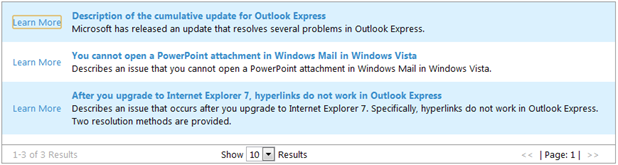
Now any of the useful link containing your solution well this can be really useful if you are facing any unknown problems. Well now fix problems and have fun.

VISIT FIXIT WEBSITE

ADVERTISEMENT

Related Posts Plugin for WordPress, Blogger...